
Cron and systemd timers: scheduled work and why it fails silently
Two schedulers, one failure mode: cron and systemd timers — and how to prove a job ran.
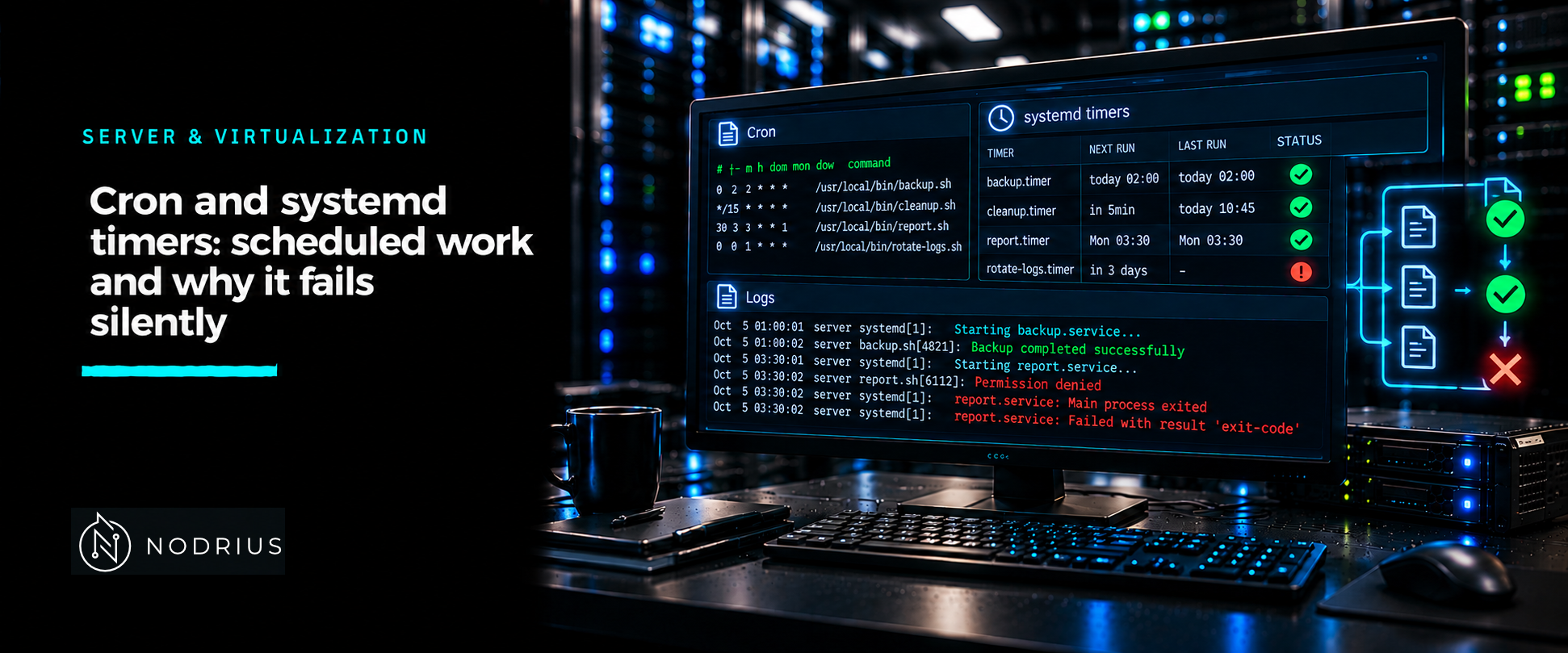
Some work must happen later, on a schedule: a backup, a certificate renewal, a report. Linux offers two schedulers. cron is the traditional one, driven by text files. A systemd timer is a unit pair — a .timer and a .service — integrated with the same service manager that runs everything else. Both are easy to set up and both fail the same way: silently.
cron: crontab files and a reduced environment
Each user has a crontab, edited with crontab -e and listed with crontab -l; it is stored in the spool directory and is not meant to be edited by hand. System-wide schedules live in /etc/crontab and /etc/cron.d/, with /etc/cron.hourly/, /etc/cron.daily/ and the rest for periodic scripts. The syntax is five time fields — minute, hour, day of month, month, day of week — followed by the command. In a user crontab that is the whole line; in /etc/crontab and /etc/cron.d/ a sixth field names the user the command runs as.
The environment is where cron bites. cron sets a handful of variables itself: SHELL to /bin/sh, and HOME and LOGNAME from the user’s /etc/passwd line. HOME and SHELL may be overridden inside the crontab; LOGNAME may not. What the job does not get is your interactive shell’s environment — above all, its PATH. A command that works when you type it can fail under cron with “command not found”.
Job output is mailed to the owner, or to the address in MAILTO; if no mail agent is installed, that output goes to syslog instead. cron also logs the launches themselves — by default the start of every job — but where that record lands is packaging: RHEL-family images keep cron’s own file at /var/log/cron, while Debian and Ubuntu route it into the general syslog stream (journalctl -u cron).
systemd timers: a .timer beside a .service
A timer unit does not run anything itself. It activates another unit when it elapses — by default a service with the same base name, or the one named in Unit=. So backup.timer and backup.service are a pair, and the meaningful operations are on the timer:
systemctl enable --now backup.timer     # schedule it, and start the schedule now
systemctl list-timers                   # what is scheduled, and when it next fires
systemctl status backup.timer           # the timer's own state
journalctl -u backup.service            # what the job actually did
The schedule comes from OnCalendar=, a wall-clock calendar expression such as *-*-* 02:30:00 for every day at 02:30, or from monotonic settings such as OnBootSec= and OnUnitActiveSec=, measured relative to boot or to the last activation. Two details change behaviour:
Persistent=(defaultfalse, and only meaningful withOnCalendar=) records the last time the service was triggered. When the timer is next activated, a run that was missed while the machine was off is executed once. With the default, a missed run is simply lost.AccuracySec=(default 1 minute) lets systemd coalesce wake-ups, so a timer fires within a window, not exactly at the named second;RandomizedDelaySec=adds deliberate jitter.
why the two fail silently, and how to check
A job that did not run usually leaves no output, because output is exactly what a failed job fails to produce. The failures cluster around a few causes:
- cron: the wrong environment.
command not foundfrom a missingPATH; use absolute paths, or setPATH=at the top of the crontab. - cron: the job is in a file cron does not read. A line added to the wrong location, or a script that is not executable. Check cron’s log for the launch.
- timer: it was started but never enabled. It fires now and disappears at the next reboot; confirm with
systemctl is-enabled backup.timer. - timer: a missed run was not caught up. Without
Persistent=true, downtime silently skips scheduled work. - either: the job ran and failed. Run the underlying command by hand, then read the journal entry for the run.
The verification reflex is the same for both: do not trust the scheduler’s silence. Ask the log whether the job started (cron’s log for cron, journalctl -u <service> for a timer), and make the job itself say something — redirect its output to a file or mail — so that “no output” is distinguishable from “did not run”.
Level and prerequisites. L2 — operational: write a schedule, prove it fires, and diagnose one that does not. Prerequisites are the shell, the file-permission model and — for timers — the systemd unit and systemctl model this sheet builds on.
Where to go next
- Server & Virtualization — the macro-area this sheet belongs to.
- Operating systems — the node this sheet sits in.
- Virtualization and networking — where scheduled jobs, services and their dependencies meet.
The companion sheets in this node — “systemd: units, targets and controlling services” and “Logs and the journal: what the system recorded and where to find it” — give the unit model and the place where a job’s output is found.
References
- systemd — systemd.timer(5), Timer unit configuration —
OnCalendar=,OnBootSec=/OnUnitActiveSec=,Unit=,Persistent=(defaultfalse, only withOnCalendar=),AccuracySec=(default 1 minute) andRandomizedDelaySec=. - systemd — systemd.time(7) — the calendar-event syntax used by
OnCalendar=and thesystemd-analyze calendarnormalisation command. - crontab(5) — tables for driving cron — the five time fields, the sixth user field in the system crontab, the environment cron sets (
SHELL=/bin/sh,HOMEandLOGNAMEfrom/etc/passwd, withHOME/SHELLoverridable andLOGNAMEnot) andMAILTO. - crontab(1) — maintain crontab files for individual users —
crontab -e,crontab -land the spool storage of a user crontab. - cron(8)/crond — the daemon — the syslog fallback when no mail agent is installed and the
-soption; the-Ldefault of logging the start of every job; and, on the cronie lineage, the/var/log/cronfile and the-Poption not to setPATH. - The companion sheet “systemd: units, targets and controlling services” for the
systemctlverbs used above.